Two-factor authentication (2FA)
Riskrunner supports time-based one-time password (TOTP) two-factor authentication for password-based accounts.
When enabled, users must enter:
Their password, and
A 6-digit code from their authenticator app (or a backup code)
This adds an extra layer of protection if a password is compromised.
Note
Users who sign in through Single Sign-On (SSO) manage multi-factor authentication through their identity provider. 2FA setup in Riskrunner is not required for those users.
Enable 2FA
Open your Profile page.
In Two-factor authentication, click Enable 2FA.
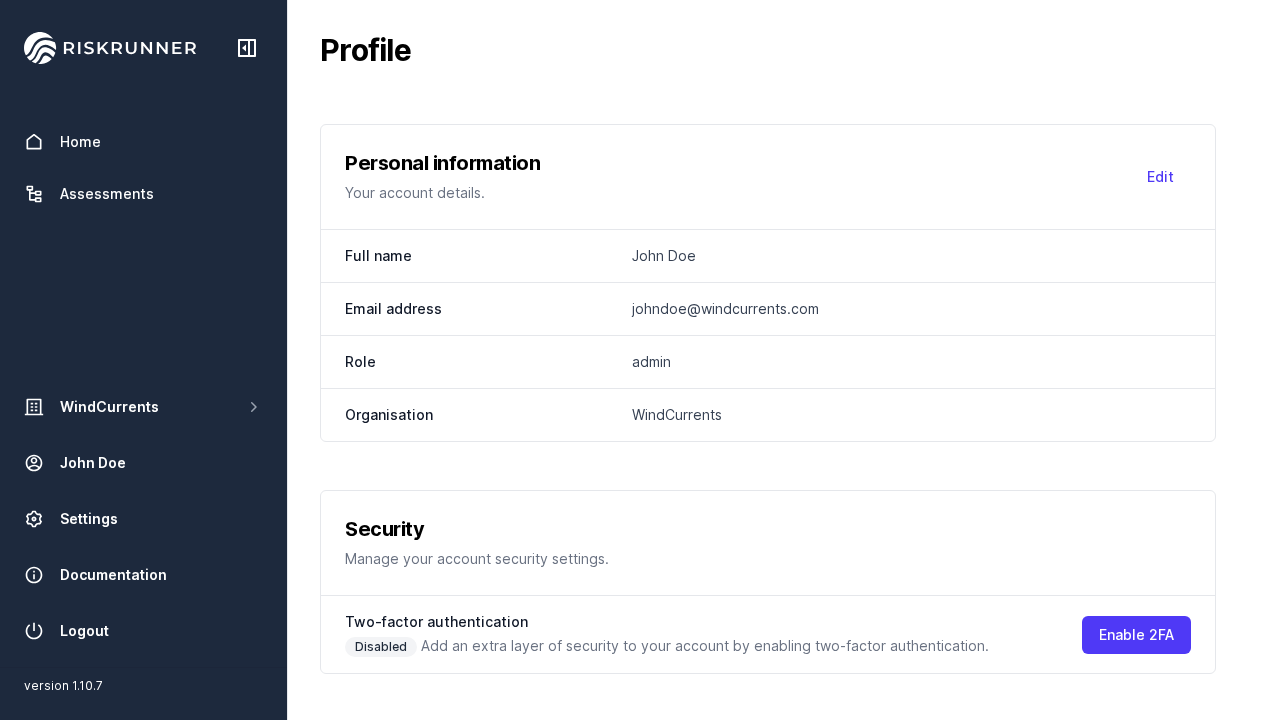
Enter your account password to begin setup.
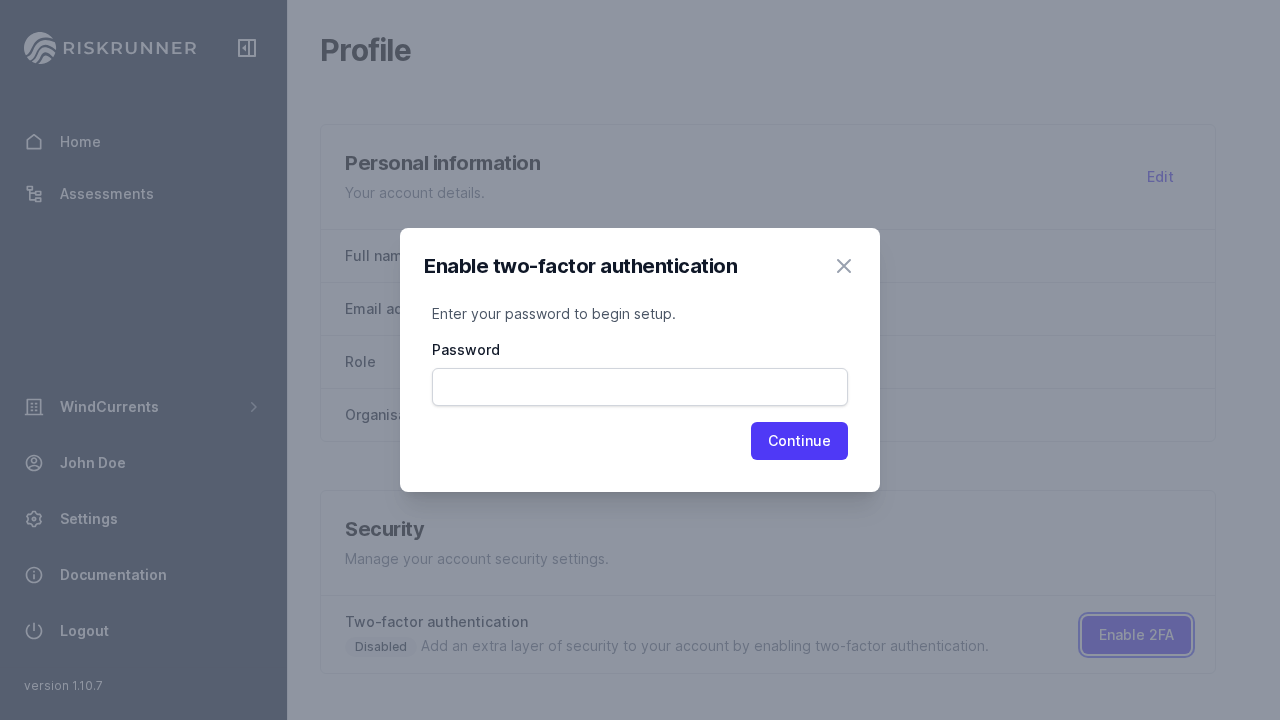
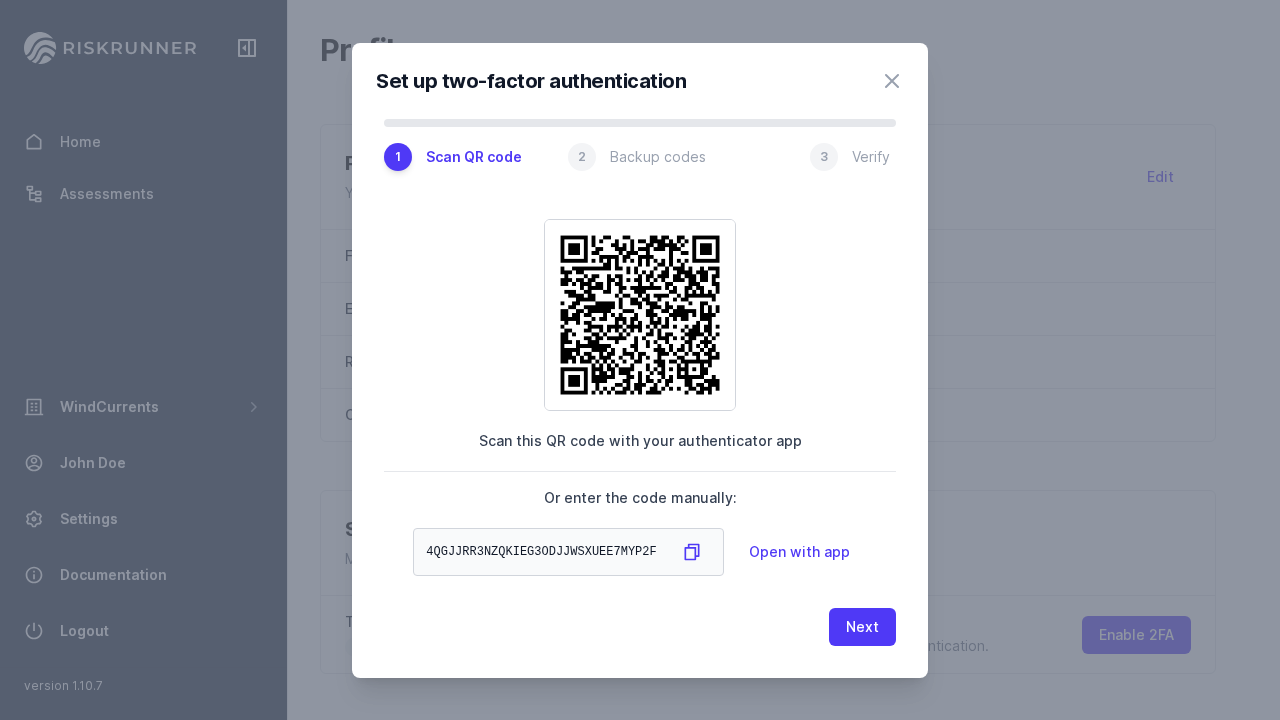
Scan the QR code with your authenticator app (or copy the manual setup secret). You can use any standard TOTP app (e.g. Bitwarden, Proton Pass, Microsoft Authenticator, Google Authenticator, 1Password, Authy).
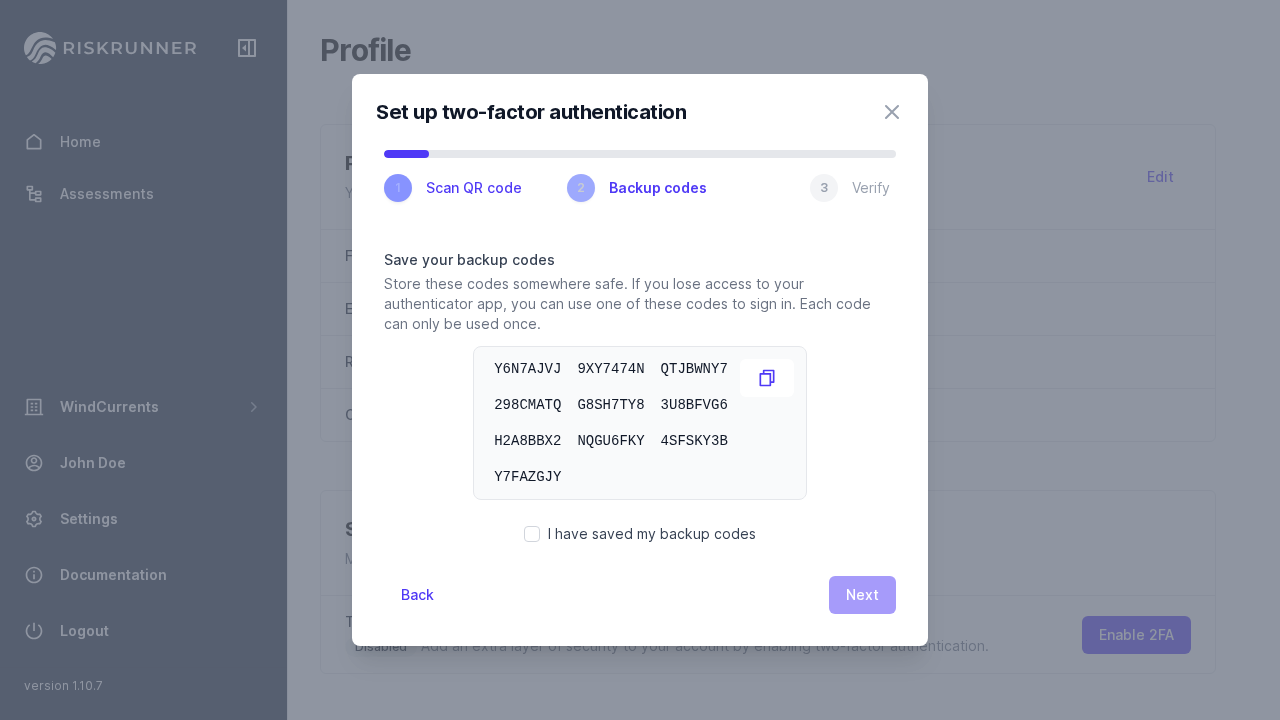
Save your backup codes in a secure location.
Important
If you lose access to your authenticator app, the backup codes are the only alternative 2fa method to get into your account.
Enter the current 6-digit code from your authenticator app.
Click Verify & Enable.
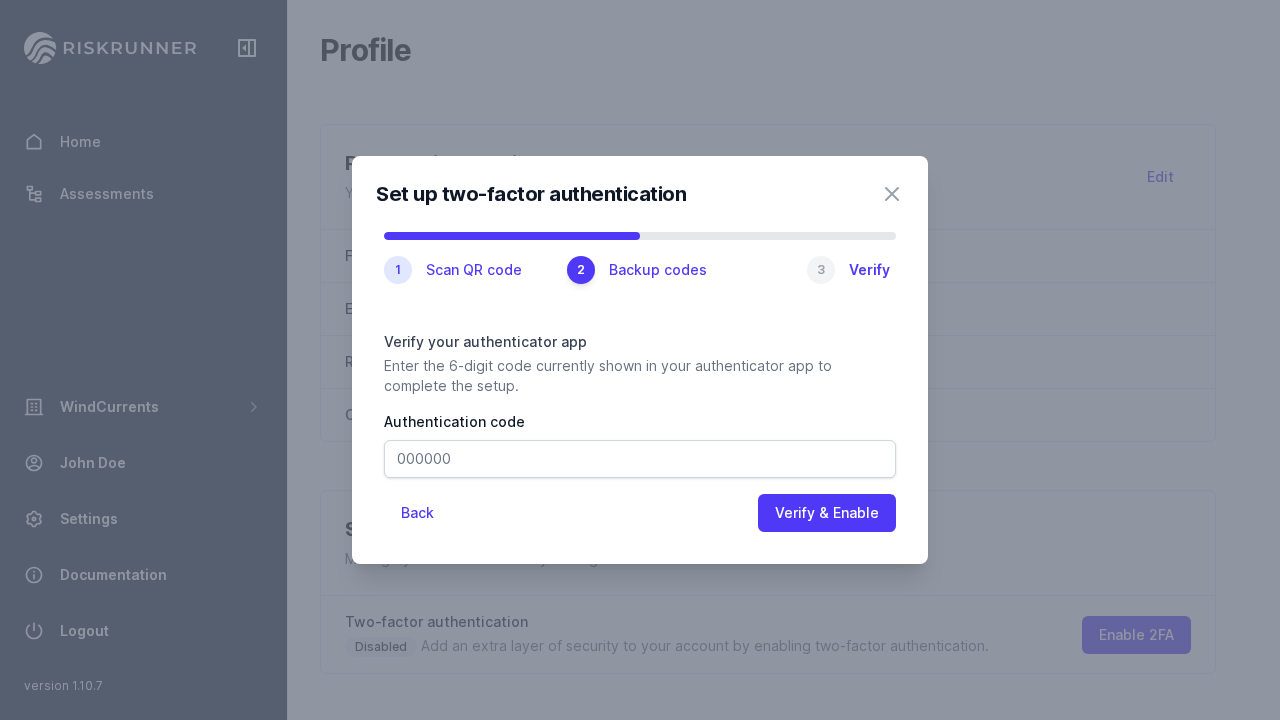
After successful verification, your account shows Enabled and 2FA is required at login.
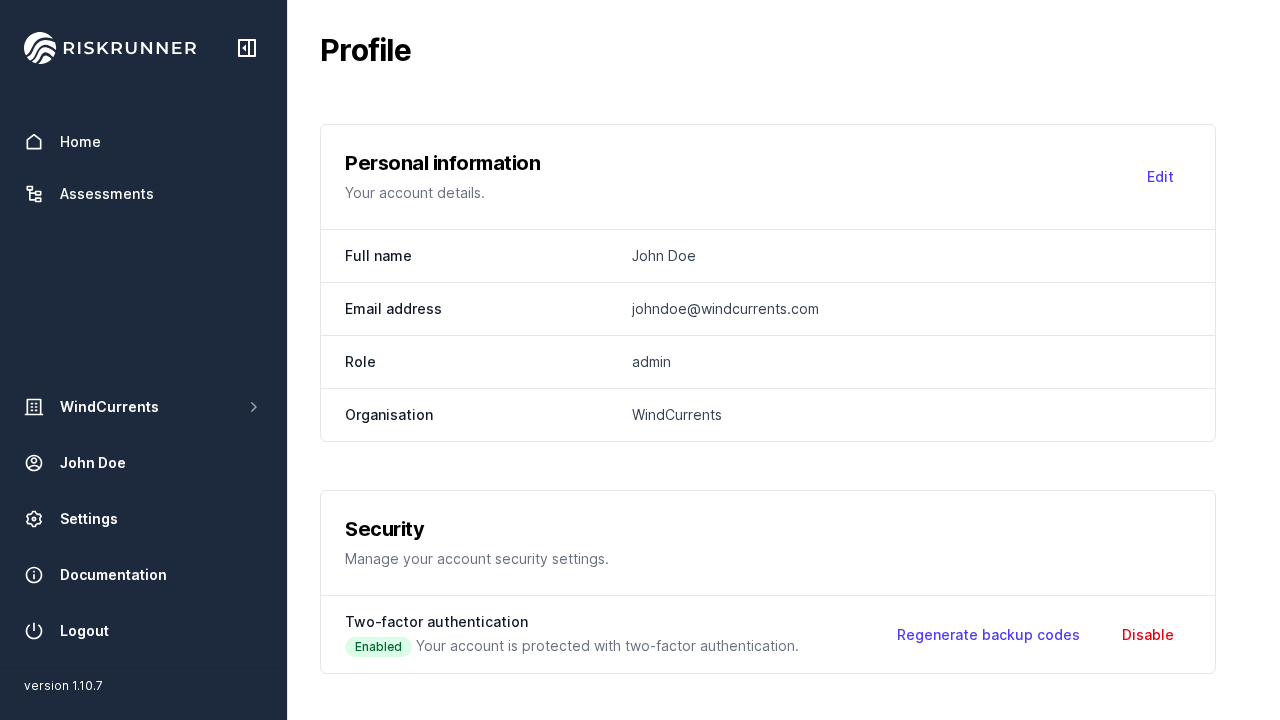
Sign in with 2FA
After entering email and password, Riskrunner prompts for a second factor:
Enter the 6-digit authenticator code, or
Select Use a backup code and enter one backup code.

Backup codes are single-use. After a backup code is used, it cannot be reused.
Regenerate backup codes
If you need a new set of backup codes:
Go to Profile > Two-factor authentication.
Click Regenerate backup codes.
Enter an authenticator code.
Save the new codes securely.
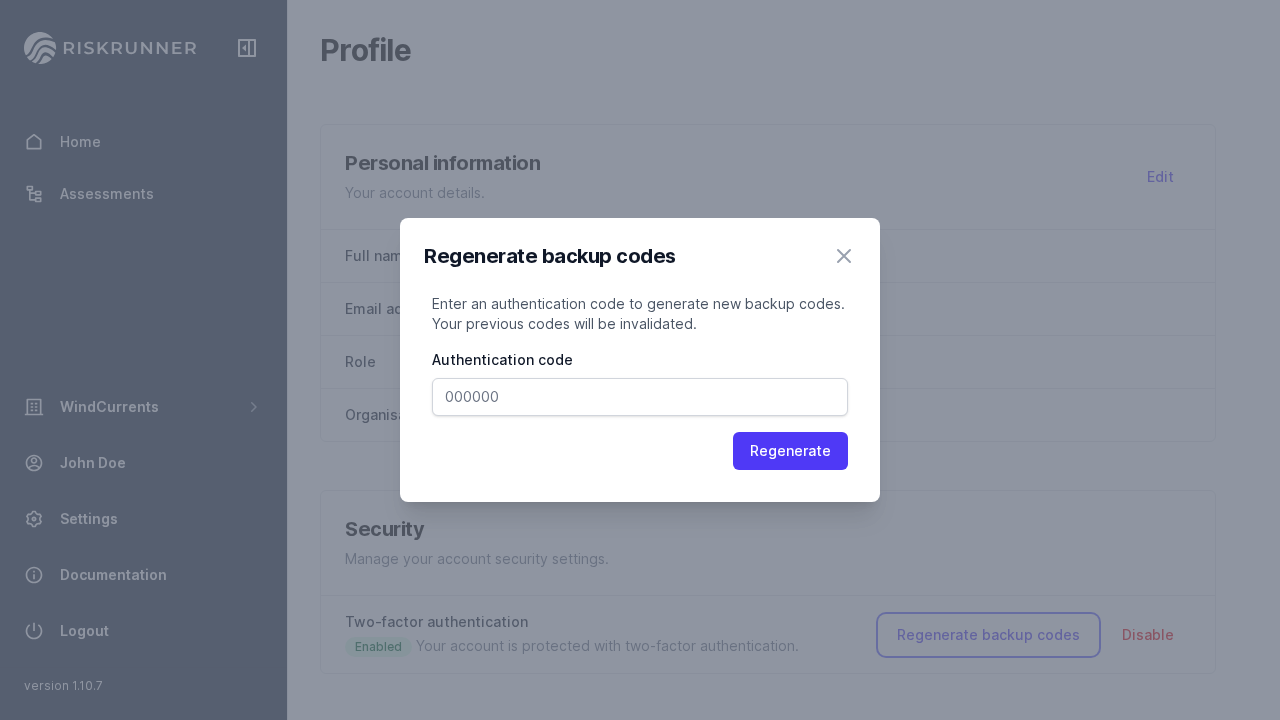
Important
Regenerating backup codes invalidates all previously issued backup codes.
Disable 2FA
Go to Profile > Two-factor authentication.
Click Disable.
Enter your password and an authenticator code.
Confirm disable action.
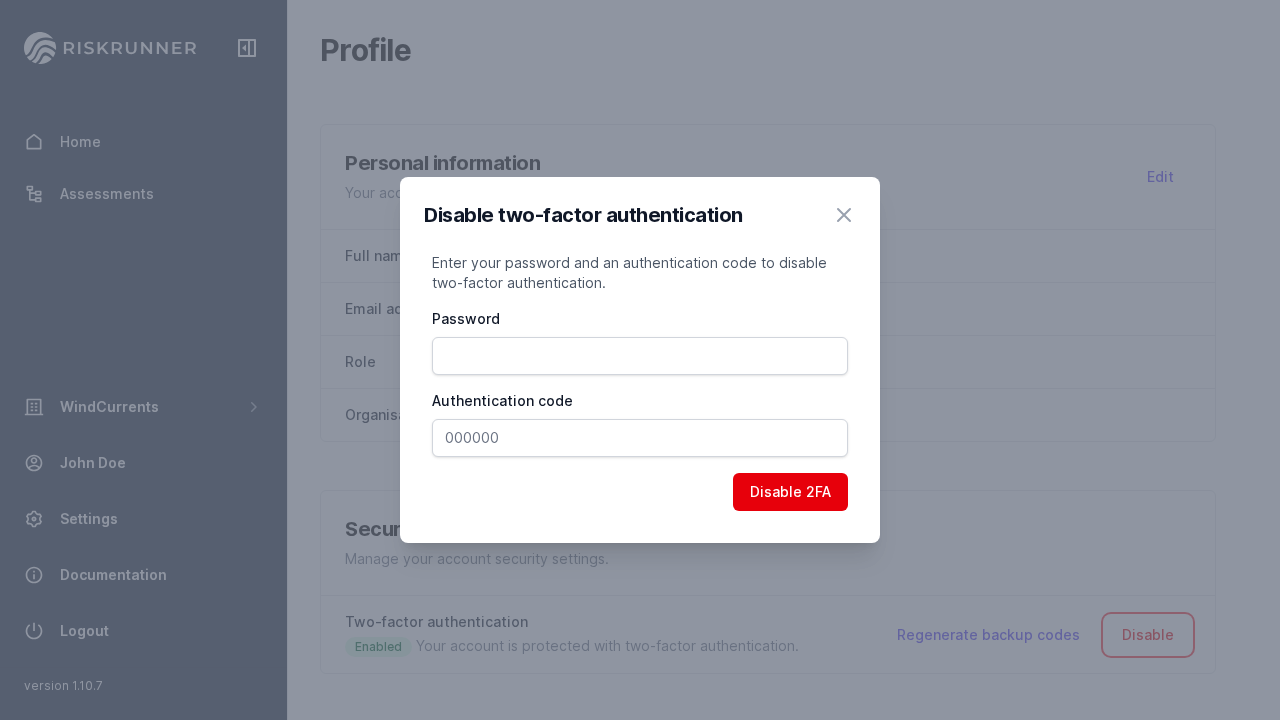
After disabling, sign-in returns to password-only authentication.
Troubleshooting
Invalid authentication code
Ensure your device time is set automatically.
Wait for the next code interval and retry.
Confirm you are using the correct authenticator account entry.
Lost authenticator device
Use one of your saved backup codes to sign in, then set up 2FA again from Profile settings.
No backup codes available
If you are already signed in, regenerate backup codes immediately from Profile > Two-factor authentication. If you are locked out and have no backup codes, contact your workspace administrator for account recovery support.